

Sözlük
Sözlük ile, tüm proje terminolojisini tek bir yerde oluşturabilir, depolayabilir ve yönetebilirsiniz. Terminolojinin temel amacı, düzgün ve tutarlı bir şekilde çevrilmiş bazı belirli veya projede sıklıkla kullanılan terimleri açıklamaktır.
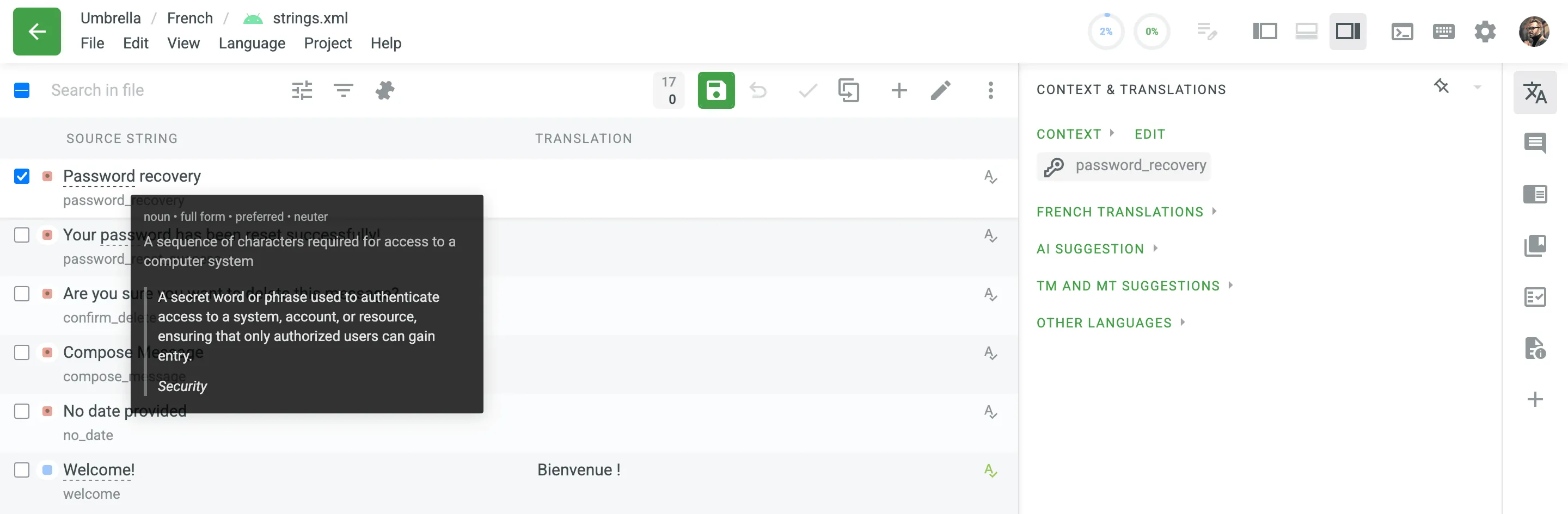
Her sözlük terimi Düzenleyicide altı çizili bir kelime olarak görüntülenir. Vurgulamak için altı çizili terimin fare ile üzerine gelin ve çevirisini, sözcük türünü ve açıklamasını (verilmişlerse) görün.
Her projeyle birlikte otomatik olarak oluşturulan proje sözlüklerine ek olarak, ayrı sözlükler oluşturabilir ve varolan sözlüklerinizi TBX, XLSX veya CSV biçiminde yükleyerek bunları içerikle doldurabilirsiniz. Bu sözlükler daha sonra gerektiğinde ilgili projelere atanabilir.
Sözlük oluşturmak için şu adımları izleyin:
- Profilinizin ana sayfasını açın ve sol kenar çubuğundaki Sözlükler’i seçin.
- Sağ üstte Sözlük Oluştur’a tıklayın.
- Görüntülenen ileti öğesinde, sözlüğünüzü adlandırın ve sözlük kayıtları tablosunda ilk olarak görüntülenecek varsayılan bir dil seçin.
- (İsteğe bağlı) Sözlüğü gerekli projelere atayın. Bu adımı atlayabilir ve daha sonra bir sözlüğü atayabilirsiniz.
- Oluştur’a tıklayın.
Proje gereksinimlerinize bağlı olarak, her dil için bir terim içeren daha basit bir yaklaşım kullanabilir veya sözlük kavramlarının sunabileceği gelişmiş işlevleri kullanarak sözlüğünüzü daha ayrıntılı ve eksiksiz hale getirebilirsiniz.
Sözlük Kavramlarını ve Terimleri Oluşturma
Section titled “Sözlük Kavramlarını ve Terimleri Oluşturma”Kavram – dil seviyesi (yani terim dili) ve terim seviyesi verileri (örn. terim, terimin sözcük türü, tür, vb.) dahil olmak üzere, kavram seviyesinde veriler içeren en üst düzey terminoloji öğesi. Basitçe söylemek gerekirse, bir kavram sözlük terimlerini ve çeşitlerini birden çok çeviri ve diğer ilgili bilgilerle birleştirir.
Sözlük kavramları eklerken aşağıdaki kavram ve terim ayrıntılarını belirtebilirsiniz.
Kavram ayrıntıları:
- Definition – A clear explanation of the concept’s meaning.
- Subject – A branch of knowledge the concept is related to.
- Translatable – Specifies whether the concept could be translated into other languages.
- Note – Short notes about a concept that might be helpful to translators.
- URL – bir kavramla ilgili bilgileri içeren web sayfasının URL’si.
- Figür – ilgili resmin URL’si.
Terim ayrıntıları:
- Term – Specific word or phrase that is being defined.
- Language – Specifies the language of the term.
- Sözcük türü – örn., isim, fiil, sıfat vb.
- Type – Classifies the term’s function (e.g., full form, acronym, abbreviation, phrase, variant).
- Status – Defines the term’s approval level (e.g., preferred, admitted, not recommended).
- Gender – The grammatical gender of the term (e.g., masculine, feminine, neuter).
- Description (context) – A brief explanation or context for the specific term (distinct from the concept’s definition).
- Note – Short notes about a term that might be helpful to translators.
- URL – bir terimle ilgili bilgileri içeren web sayfasının URL’si.
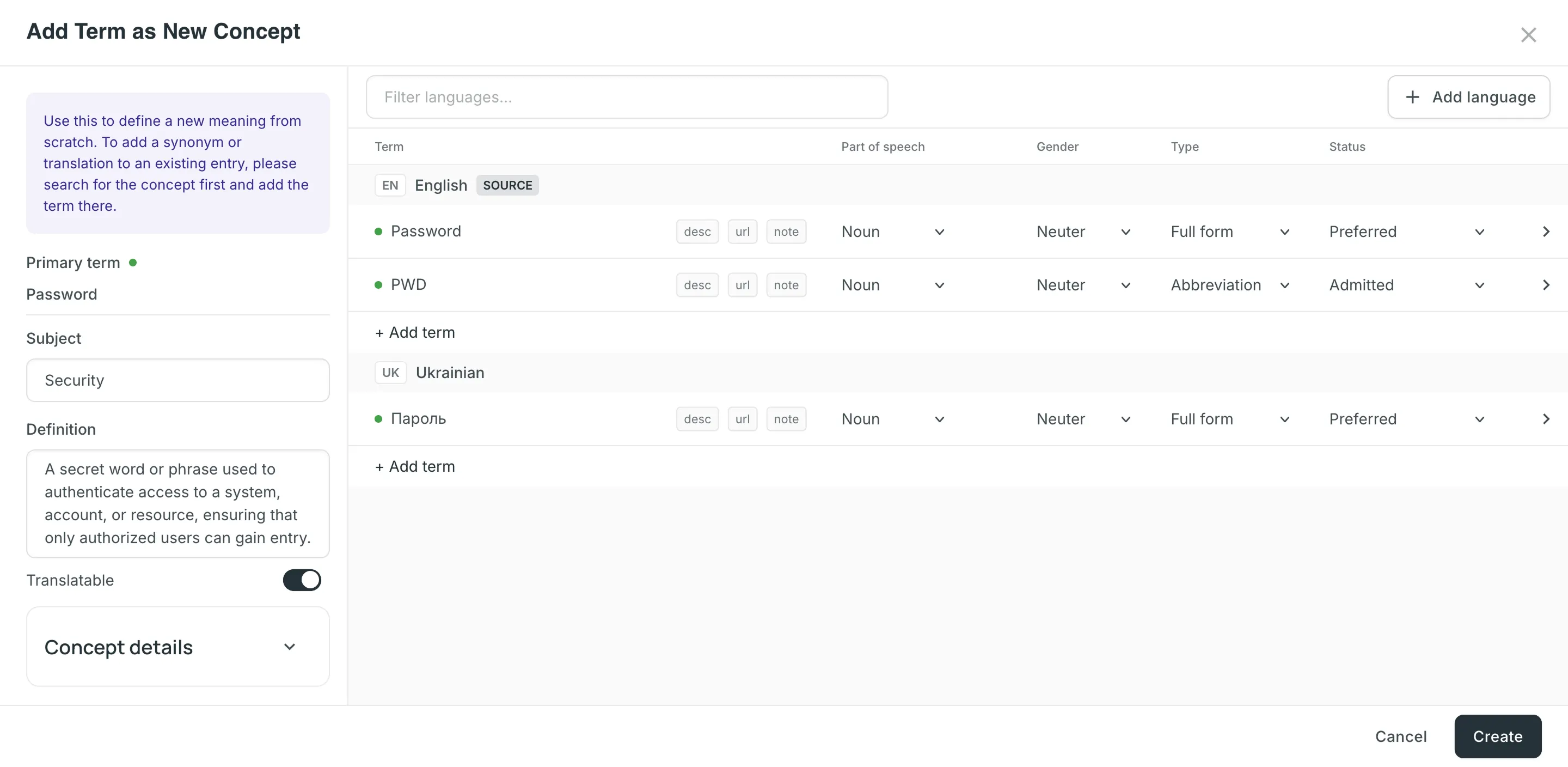
The concept dialog opens as a full-screen view with two panes:
- The left pane contains concept-level details: the Primary term (filled in automatically from the source-language term), Subject, Definition, and the Translatable toggle. The expandable Concept details section holds the concept Note, URL, and Figure.
- The right pane lists all terms across languages, grouped by language. The source language is pinned at the top and marked with a SOURCE badge. Each term row shows its Part of speech, Gender, Type, and Status, along with the desc, url, and note badges that expand the term’s Description (context), URL, and Note fields.
Yeni bir sözlük kavramı eklemek için şu adımları izleyin:
- Profilinizin ana sayfasını açın ve sol kenar çubuğundaki Sözlükler’i seçin. Alternatively, open your project and go to Settings > Glossaries.
- Gerekli sözlükte Kayıtları Görüntüle’ye tıklayın.
- Click Add term.
- In the source-language row, enter the term and set its Part of speech, Gender, Type, and Status. Hover over the row and click to detect the part of speech automatically.
- (Optional) Click Add term below the language to add a term variation (e.g., acronym, short form, etc.)
- (Optional) Click Add language and search for a language to add its translation.
- Specify the concept details in the left pane (Subject, Definition, and the Concept details section).
- Oluştur’a tıklayın.
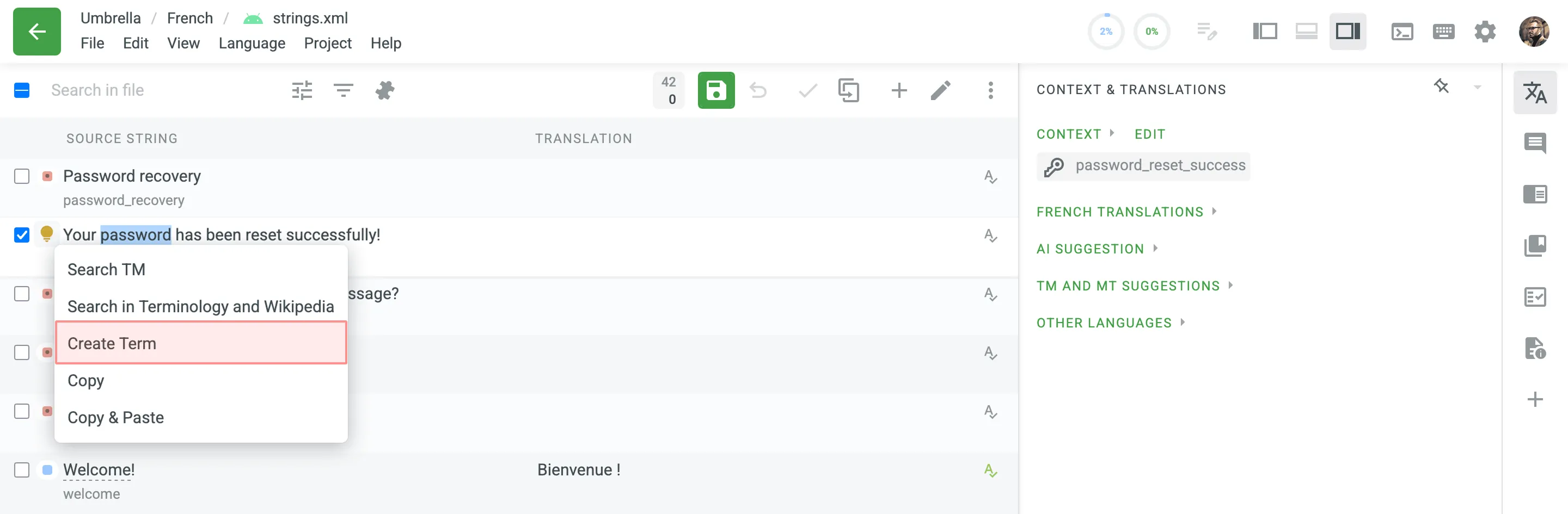
Düzenleyici aracılığıyla sözlük kavramları eklemek için şu adımları izleyin:
- Düzenleyicide, kaynak dizgide gerekli kelimeyi seçin.
- In the appeared menu, select Create Term. Alternatively, you can use the keyboard shortcut to add a concept (by default, Ctrl +G ).
- Yukarıdaki bölümde açıklanan adımları izleyin.
Çevirmenlerin ve düzeltmenlerin Düzenleyici içinde terimleri düzenlemesine izin vermek için şu adımları izleyin:
- Projenizi açın ve Ayarlar > Gizlilik ve işbirliği’ne gidin.
- Sözlük Erişim Ayarları bölümünde proje üyeleri için tercih edilen erişim seviyesini seçin.
You can choose to allow them to manage only draft terms. When a project member adds a draft term, project managers can filter terms by draft status, review them, and make necessary modifications or add glossary concept details.
Alternatively, you can grant full access, allowing them to manage all glossary terms and concept details with the same level of control as the project owner and managers.
Viewing, Searching, and Filtering Glossary Concepts and Terms
Section titled “Viewing, Searching, and Filtering Glossary Concepts and Terms”Once you open a glossary, you can switch between two views using the Group by concept toggle.
With Group by concept enabled, glossary content is grouped as concepts (one concept per row), with each term’s translations shown in separate language columns. Under each term, its part of speech, status, gender, and type appear as badges.
With Group by concept disabled, glossary content is shown as individual terms (one term per row) with the following details:
- Term: Contains either source or target language text.
- Language: The term’s language (e.g., French, Spanish).
- Part of speech: The term’s grammatical category (e.g., noun, verb).
- Type: The term’s classification (e.g., full form, acronym).
- Status: The term’s approval level (e.g., preferred, admitted).
- Gender: The term’s grammatical gender (e.g., masculine, feminine).
- Description (context): The specific description for that term.
- Note: Any additional note for that term.
- Concept subject: The subject field from the parent concept.
- Concept definition: The definition from the parent concept.
By default, all glossary concepts and terms are displayed. To find a specific concept or term, type in the Search field. In both views, the search matches against the following fields:
- Term text
- Term description (context)
- Concept definition
- Concept subject
Arama sonuçlarını daraltmak için aşağıdaki seçenekleri kullanabilirsiniz:
- Match case
- Match whole phrase
- Exact match
Kavramların veya terimlerin listesini süzmek için Süzgeçler’e tıklayın ve mevcut seçenekleri kullanın:
- Languages (available when Group by concept is disabled): Filter by All languages or a Specific language.
- Son değiştirilme: Değiştirilme tarihine göre süzün (Tümü, Özel Aralık).
- Part of speech: Filter by grammatical category (All, Noun, Verb, etc.).
- Type: Filter by classification (All, Full form, Acronym, etc.).
- Status: Filter by approval status (All, Preferred, Draft, etc.).
- Gender: Filter by grammatical gender (All, Masculine, Feminine, etc.).
- Author: Filter by All or a particular user.
To sort concepts or terms, click a column header. By default, the list is sorted by the source-language terms. You can also sort by the Created or Last modified column. Click a column header once to sort in ascending order and click again to sort in descending order.
To customize your viewing experience, you can use the following options on the top toolbar:
- Word Wrap: Click to toggle the word wrap feature. This is useful for viewing long texts (such as definitions, subjects, or notes) without expanding the column width.
- Sütun Ayarları: Tabloda hangi sütunların görüntüleneceğini yapılandırmak için simgesine tıklayın. Tümünü aynı anda göstermek veya gizlemek için Tüm Sütunlar’ı kullanın.
- Concepts view: You can show or hide columns such as Definition, Subject, Translatable, Note, Created, and Last modified, as well as the language columns. All columns and languages are shown by default, except Translatable and Note.
- Terms view: You can show or hide columns like Language, Part of speech, Type, Status, Gender, Description (context), Note, Concept subject, and Concept definition.
Sözlük Kavramlarını ve Terimleri Düzenleme
Section titled “Sözlük Kavramlarını ve Terimleri Düzenleme”Belirli bir sözlüğün varolan sözlük kavramlarını düzenleyebilirsiniz.
Bir sözlük kavramını düzenlemek için şu adımları izleyin:
- Profilinizin ana sayfasını açın ve sol kenar çubuğundaki Sözlükler’i seçin. Alternatively, open your project and go to Settings > Glossaries.
- Gerekli sözlükte Kayıtları Görüntüle’ye tıklayın.
- Çift tıklayarak bir sözlük kavramı açın veya satırındaki simgesine tıklayın ve Düzenle’yi seçin.
- In the Edit concept dialog, make the necessary edits to the concept or its terms. The dialog uses the same two-pane layout described in Creating Glossary Concepts and Terms, with an added Metadata section that lists the concept ID, creation date, and last modification details.
- Kaydet’e tıklayın.
You can delete a single term, an entire concept, or several concepts at once.
When editing a concept, you can delete individual terms or the entire concept directly in the dialog:
- Delete a single term – expand the term’s row and click Delete term.
- Delete the entire concept – click Delete concept in the bottom-left corner of the dialog.
To delete several concepts at once, follow these steps:
- Select the checkboxes next to the concepts you want to delete. To delete all concepts, select the top checkbox and confirm the selection of all concepts.
- simgesine tıklayın.
Sözlüklerinizi doğrudan profil ana sayfanızdaki Sözlükler sayfasından yönetebilirsiniz. Buna içerik yükleme ve indirme, sözlük ayrıntılarını düzenleme, projelere sözlük atama ve bunları silme dahildir.
To access these management options, follow these steps:
- Profilinizin ana sayfasını açın ve sol kenar çubuğundaki Sözlükler’i seçin.
- Bağlam menüsünü açmak için gerekli sözlükte simgesine tıklayın.
Varolan sözlükleri Crowdin’e yükleyebilir veya sözlük içeriğinizi yedekleme, düzenleme veya Crowdin dışında başka amaçlarla indirebilirsiniz. Glossaries can be downloaded in full or with applied filters, which is useful when you want to export only a subset of glossary concepts that meet specific criteria (e.g., by subject, status, or language).
To upload or download the glossary, follow these steps:
- Profilinizin ana sayfasını açın ve sol kenar çubuğundaki Sözlükler’i seçin. Alternatively, open your project and go to Settings > Glossaries.
- Gerekli sözlükte Kayıtları Görüntüle’ye tıklayın.
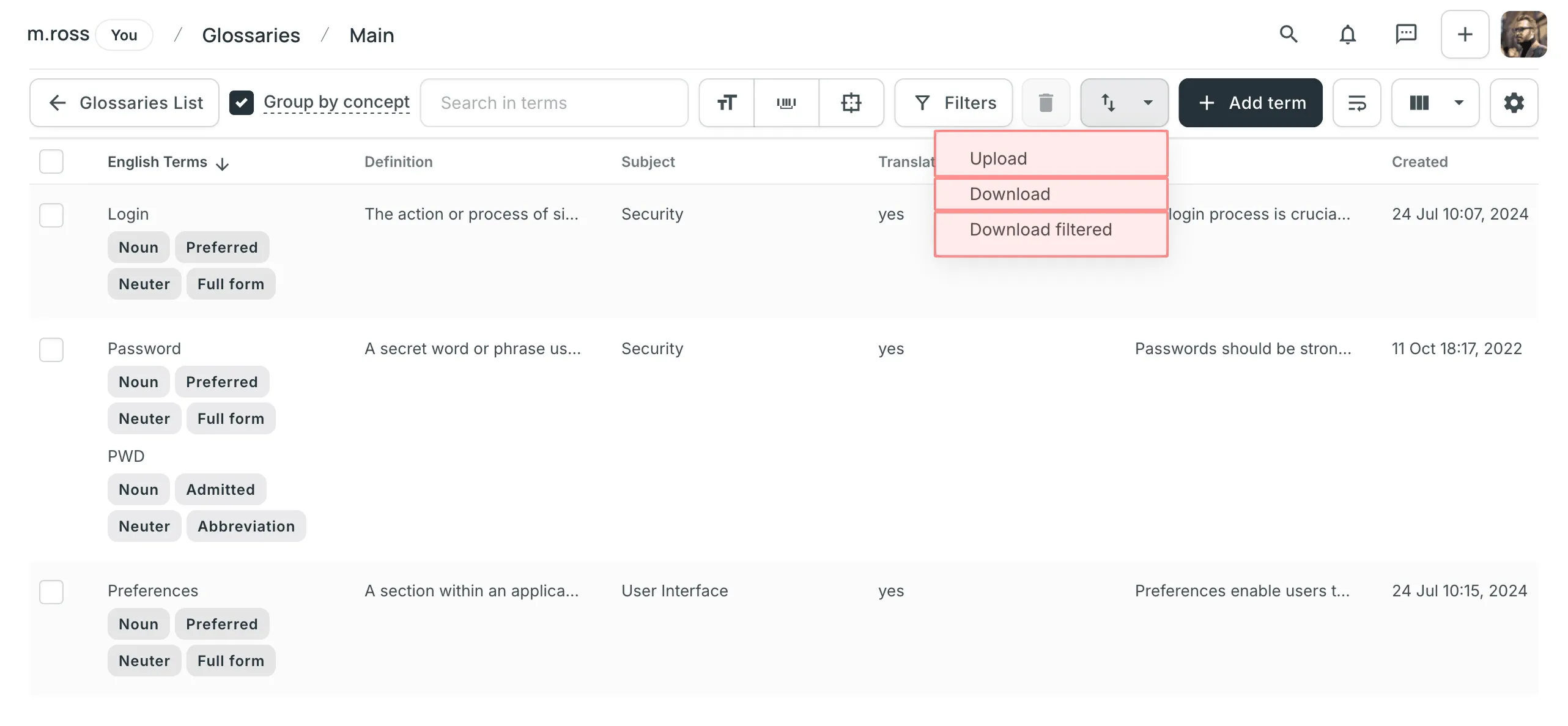
- Click and select one of the following options:
- Upload – uploads new glossary content.
- Download – downloads the full glossary.
- Download filtered – downloads only glossary concepts that match the applied filters or search criteria.
Proje sahibi ve yöneticiler, sözlüğü şu dosya biçimlerinde yükleyebilir ve indirebilir: TBX (v2), TBX (v3), CSV, XLSX.
Eğer bir sözlüğü, CSV veya XLS/XLSX dosyası biçimlerinde yüklerseniz, yapılandırma ileti öğesinde her sütun için dili ve sütun değerini (terim, açıklama veya sözcük türü) seçin.
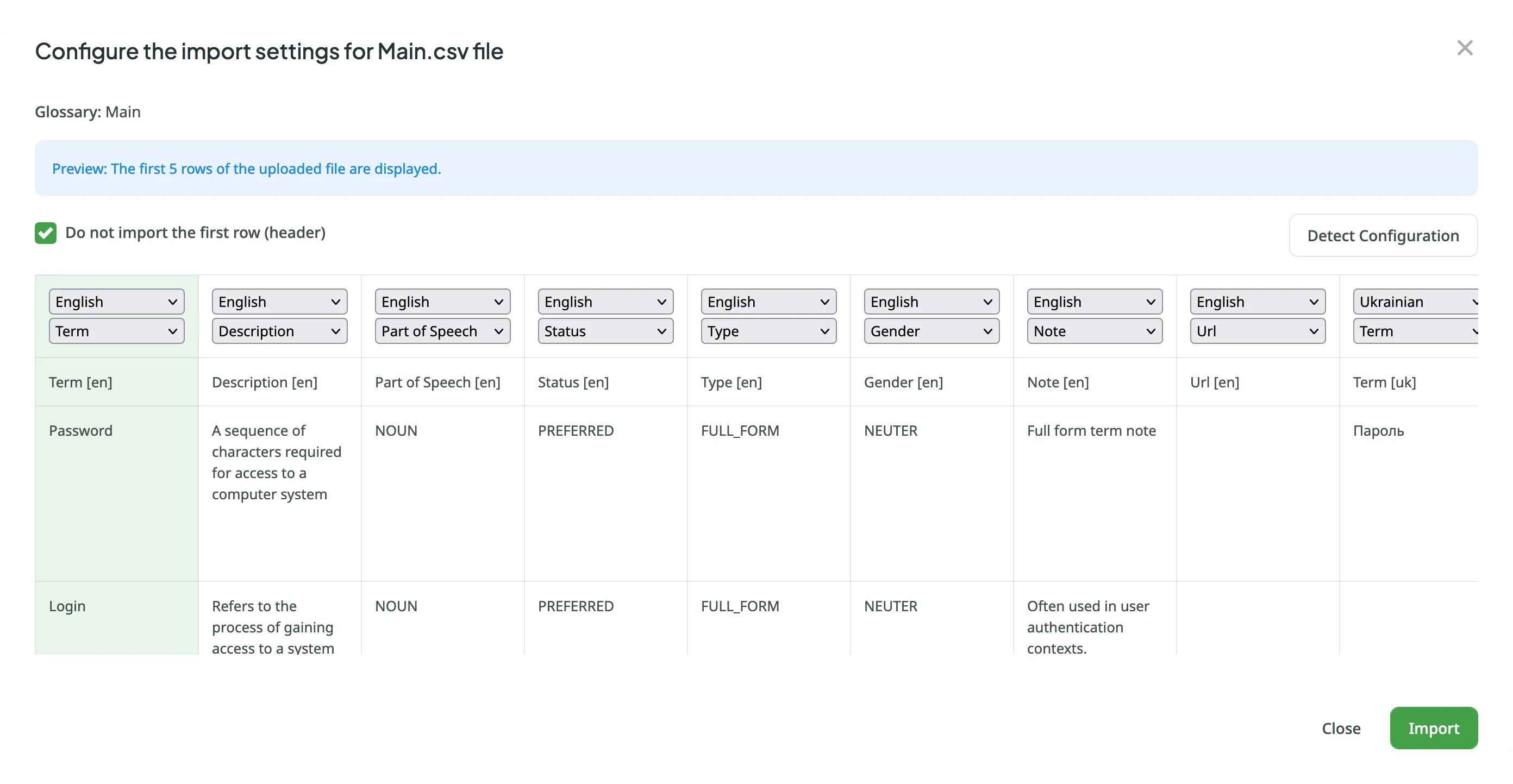
Bir sözlüğü Crowdin’den indirirken, bazı tarayıcılar indirilen dosyaya XML uzantısı ekleyebilir, böylece dosya sample.tbx.xml olarak adlandırılabilir. Bu tür bir dosyayı Crowdin’e geri aktarmak için dosyayı sample.tbx olarak yeniden adlandırın.
CSV ve XLSX Dosya Biçimlerinde Sözlük için Otomatik Sütun Tanımlama
Section titled “CSV ve XLSX Dosya Biçimlerinde Sözlük için Otomatik Sütun Tanımlama”Sözlük dosyanızı CSV veya XLSX biçimlerinde yükledikten sonra, sistem ilk satırda belirtilen sütun adlarına dayanarak dosya şemasını otomatik olarak algılar. Tanımlama, büyük/küçük harfe duyarsız bir şekilde gerçekleştirilir. Columns that weren’t detected automatically will be left as Not used/Not chosen for manual configuration. Otomatik sütun tanımlama, özellikle birçok dil ve ek sütun (örn. Durum, Tür, Cinsiyet vb.) içeren sözlük elektronik tabloları yüklediğinizde yararlıdır.
Otomatik sütun algılamadan en iyi şekilde yararlanmak için CSV veya XLSX sözlük dosyalarınızdaki sütunları aşağıda açıklanan şekilleri kullanarak adlandırmanızı öneririz:
- Term details –
{column-type} [{crowdin-language-code}](e.g.,Term [en],Description [en],Part of Speech [en], etc.). - Concept details –
Concept {concept-details-type}(e.g.,Concept Definition,Concept Subject,Concept Note, etc.).
To redetect the glossary file scheme, click Detect Configuration.
Tek bir ileti öğesinde sözlüğünüzü yeniden adlandırabilir, varsayılan dilini değiştirebilir veya proje atamalarını yönetebilirsiniz (projelere atama veya projelerden atamaları kaldırabilirsiniz).
Bir sözlüğü düzenlemek veya atamak için şu adımları izleyin:
- Profilinizin ana sayfasını açın ve sol kenar çubuğundaki Sözlükler’i seçin.
- Gerekli sözlükte simgesine tıklayın ve Düzenle’yi seçin.
- Görünen ileti öğesinde şunları yapabilirsiniz:
- Sözlük Adını değiştirin.
- Dili değiştirin.
- Aşağıdaki projelere sözlük ata listesinde projelerin yanındaki onay kutularını işaretleyin veya işaretini kaldırın.
- Kaydet’e tıklayın.
Deleting a glossary will permanently remove the glossary and all its contained concepts and terms from the organization. This action cannot be undone.
To delete a glossary, follow these steps:
- Profilinizin ana sayfasını açın ve sol kenar çubuğundaki Sözlükler’i seçin.
- Gerekli sözlükte simgesine tıklayın ve Sil’i seçin.
- Silmeyi onaylayın.
Sözlüklerinizi sahip olduğunuz tüm projeler arasında paylaşmak için şu adımları izleyin:
- Profilinizin ana sayfasını açın ve sol kenar çubuğundaki Sözlükler’i seçin.
- Sözlükler sayfasının sol üst kısmında Sözlükleri Paylaş onay kutusunu işaretleyin.